
Excel to Tally: Import Any Software Data to Tally by Excel

Add-on pricing
Excel to Tally (Single User)
₹3,499 + GST
1 year validity
Excel to Tally (Multi-User)
₹4,999 + GST
1 year validity
Every accounting and billing package can export to Excel. Busy, Marg, Vyapar, a marketplace seller panel, a bank portal, an old in-house system. What none of them can do is put that data into TallyPrime.
So the spreadsheet gets printed, and someone types it in. Ledgers, stock items, then months of invoices.
Our Excel to Tally add-on removes that step. You fill one Excel workbook, open TallyPrime, and import masters and vouchers in one click.
It lives inside TallyPrime
Once installed, Excel to Tally appears as its own option on the Gateway of Tally. There is no separate program to run and no XML to generate.
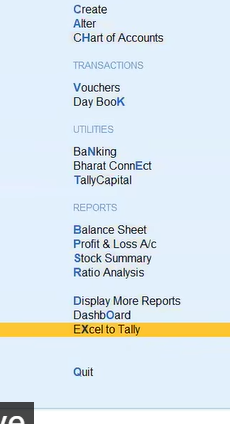
It imports into whichever company is open in Tally, so open the right company and financial year before you start.
One workbook, one sheet per type of data
The workbook has a separate sheet for each kind of data: account groups, ledgers, stock items, opening bills, cost centres, sales, purchase and the other voucher types. You fill only what you need. Empty sheets are skipped.
Each sheet is a plain table, one row per entry. This is the Sales sheet:

Date, voucher number, party, GSTIN, address, state, place of supply, sales ledger. Whatever your old software exports, it can be copied into these columns. If its layout is different, the workbook has a column mapping sheet so the columns can be lined up once and reused every time.
Step 1: import masters
Choose Import Masters. Groups, ledgers, opening balances, cost centres, units and stock items come in together.
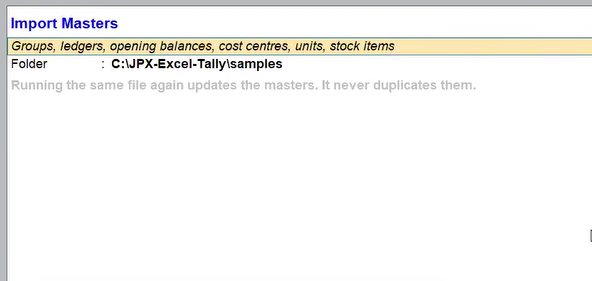
Running the same file again updates the masters. It never duplicates them. So when a new customer or item is added to the sheet, you just import it again.
Step 2: import vouchers
Choose Import Vouchers. It handles sales, purchase, credit and debit notes, receipts, payments, contra, journals, orders, and stock and material in/out entries.
Masters must exist before vouchers, which is why they are a separate step.
Step 3: read the result, or undo it
After every import you get a result screen that tells you exactly what happened.
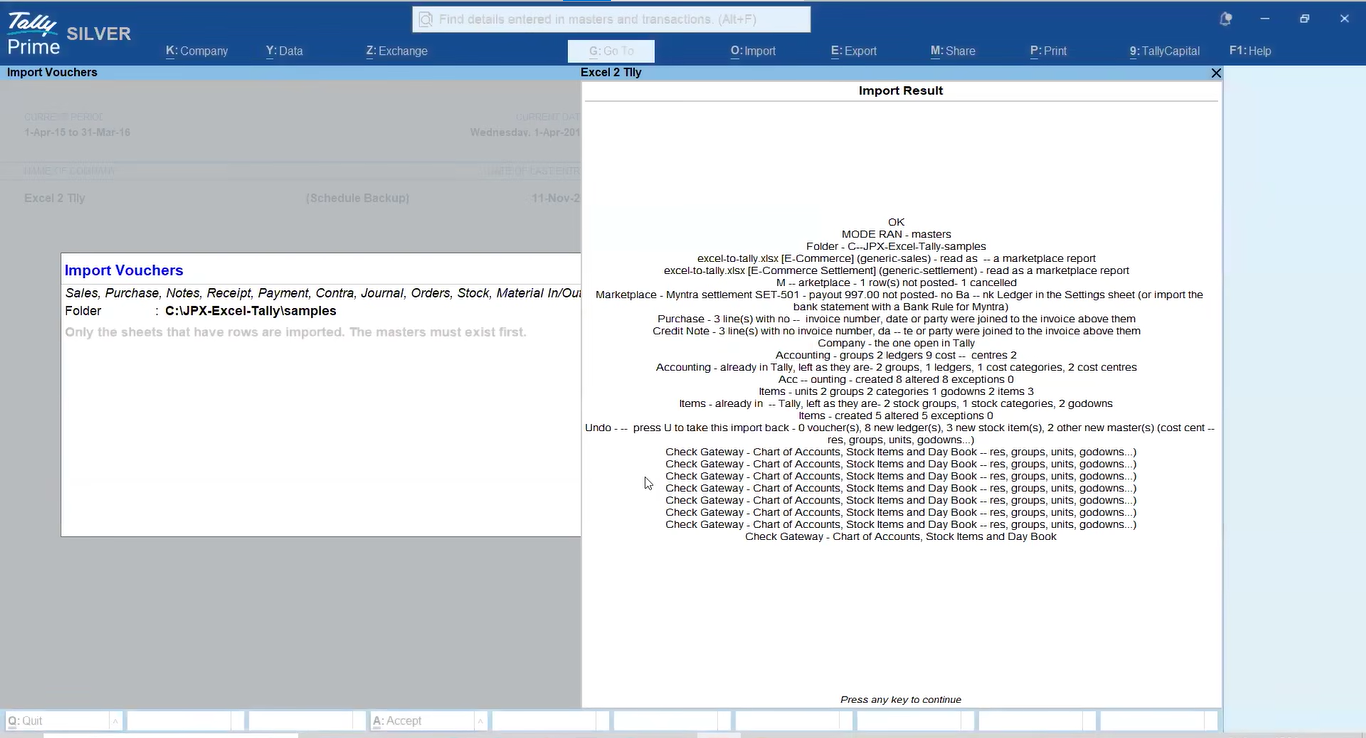
It shows what was created and what already existed. It shows what could not be posted, and why. In the example, one marketplace settlement was not posted because no bank ledger had been set. It also shows lines it joined to the invoice above them because they had no invoice number of their own.
At the bottom is the most useful line on the screen: press U to take this import back. If anything looks wrong, one key removes the vouchers and the new masters that import created. Fix the sheet and run it again.
Then check it in Tally
Open the Chart of Accounts, Stock Items and Day Book. Compare the Excel total with the Tally total. Check a few invoices for GST.
Before your first big file, take a backup and start small, with a few ledgers and one day of sales.
What people use it for
- Changing software. Export from the old package, import into TallyPrime, and you skip months of re-entry. Coming from Busy? See our full Busy to Tally migration.
- Marketplace sellers. Sales and settlement reports from online marketplaces.
- Daily imports. Order sheets, supplier invoices and bank entries that arrive as Excel every day.
More specific guides: sales import with inventory and receipts import, bill-wise.
Common questions
Can I import from any software?
Yes, if it can export to Excel or CSV. We line up its columns with the workbook once, and after that it is one click.
What if the import goes wrong?
Press U on the result screen. The import is taken back, including any masters it created.
Do I need to know TDL?
No. We install it and set it up remotely. You only work in Excel and the Tally menu.
Try it on your own data
Send us a sample of your Excel export, a few ledgers and a day of vouchers is enough. We will import it into a copy of your company and show you the result before you decide.